- How to Build a Local AI Server Under $1,000
- Quick Answer
- Recommended Local AI Server Build Under $1,000
- Why the GPU Matters Most
- Why Choose the RTX 3060 12GB?
- Should You Buy a Used RTX 3090 Instead?
- How Much System RAM Do You Need?
- Why You Do Not Need an Expensive CPU
- Storage Requirements
- Power Supply and Cooling
- Install Linux
- Install Ollama
- Install Open WebUI
- What Can This $1,000 AI Server Do?
- Private AI Assistant
- Local Coding Assistant
- Document RAG
- AI Automation
- Local AI API
- What Models Should You Run?
- Can Multiple People Use the Server?
- Best Upgrades Later
- Common Mistakes
- New vs Used Hardware
- Frequently Asked Questions
- Can you really build a local AI server for under $1,000?
- How much VRAM should a local AI server have?
- Is 32GB of RAM enough for local AI?
- Do I need an NVIDIA GPU for a local AI server?
- Can I run a local AI server without a GPU?
- Should I buy an RTX 3060 12GB or a newer 8GB GPU?
- Can I use this server for RAG?
- Conclusion
How to Build a Local AI Server Under $1,000
You do not need a $3,000 workstation to run AI models at home. With the right balance of GPU VRAM, system memory, storage, and a modest CPU, you can build a capable local AI server under $1,000 for private chat, coding, RAG, document analysis, and automation.
The key is spending money where local AI actually needs it. For most LLM workloads, that means prioritizing GPU VRAM over an expensive CPU.
This guide shows a practical hardware configuration, explains where to save money, and walks through installing Ollama and Open WebUI.
Quick Answer
A good local AI server under $1,000 should ideally have an NVIDIA GPU with at least 12GB of VRAM, 32GB or preferably 64GB of system RAM, a 1TB NVMe SSD, and a modern six-core CPU.
For a budget build, a used RTX 3060 12GB remains an interesting starting point because its 12GB VRAM is more useful for local LLMs than many faster gaming cards with only 8GB.
Recommended Local AI Server Build Under $1,000
| Component | Recommended Option | Target Budget |
|---|---|---|
| GPU | NVIDIA RTX 3060 12GB | $220–$300 used |
| CPU | AMD Ryzen 5 5600 | $80–$120 |
| Motherboard | B550 motherboard | $80–$110 |
| RAM | 64GB DDR4 | $100–$150 |
| Storage | 1TB NVMe SSD | $60–$100 |
| Power Supply | 650W 80+ Bronze or better | $60–$90 |
| Case | Airflow-focused ATX case | $50–$80 |
| Cooling | Stock or basic tower cooler | $0–$30 |
Expected total: approximately $650–$980 depending on local pricing and whether you buy new or used components.
Hardware prices change constantly, so treat these numbers as target ranges rather than fixed prices. The GPU market in particular can move significantly within a few months.
Why the GPU Matters Most
For local LLM inference, the GPU is usually the most important component because model weights can be loaded into GPU memory for much faster inference.
The most important specification is often not raw gaming performance but VRAM capacity.
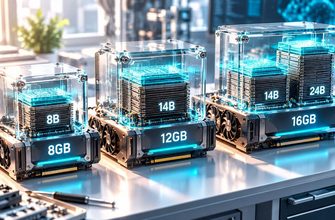
| VRAM | Local AI Use |
|---|---|
| 8GB | Small quantized models, lightweight coding and chat |
| 12GB | Strong entry point for 7B–14B-class quantized models |
| 16GB | More flexibility, larger contexts and models |
| 24GB | Excellent for larger local models and serious experimentation |
The exact model that fits depends on quantization, context length, KV cache size, inference engine, and how much of the model is placed on the GPU.
This is why an older 12GB or 24GB GPU can sometimes be more useful for local AI than a newer gaming GPU with less VRAM.
Why Choose the RTX 3060 12GB?
The RTX 3060 12GB is not a high-end AI accelerator, but it offers a useful combination of CUDA support, relatively low power consumption, broad software compatibility, and enough VRAM for many popular quantized models.
It works well for workloads such as:
- Private AI chat
- Local coding assistants
- Document summarization
- Small and medium RAG systems
- AI automation with n8n
- Local OpenAI-compatible APIs
- Testing different open models
The main limitation is performance. A more powerful GPU will generate tokens faster, but for a sub-$1,000 server, VRAM capacity often deserves higher priority than maximum gaming-class performance.
Should You Buy a Used RTX 3090 Instead?
If you find a good deal, a used RTX 3090 with 24GB of VRAM can completely change the capability of a budget AI server.
Twenty-four gigabytes of VRAM gives you much more room for larger quantized models, longer contexts, embeddings, and more demanding AI workloads.
However, there are several problems.
- Used RTX 3090 pricing varies dramatically.
- The card consumes much more power.
- You need a stronger power supply.
- Cooling requirements are significantly higher.
- The GPU can consume most of the entire $1,000 budget.
If a 3090 forces you to compromise on the power supply or buy unreliable components, choose the more balanced 12GB build instead.
How Much System RAM Do You Need?
32GB is the practical minimum for a general-purpose local AI server, but 64GB gives you considerably more flexibility.
System RAM becomes particularly important when part of a model cannot fit in VRAM and must be offloaded to system memory.
Additional RAM is also useful when running several services at the same time, such as:
- Ollama
- Open WebUI
- Docker containers
- Vector databases
- n8n
- PostgreSQL
- Embedding models
If the choice is between a faster CPU and 64GB of RAM, the additional memory will often be more useful for a dedicated local AI server.
Why You Do Not Need an Expensive CPU
A local AI server does not necessarily need a Ryzen 9 or Core i9.
If most inference runs on the GPU, a capable six-core processor such as the Ryzen 5 5600 can handle the operating system, Docker, API requests, Open WebUI, and supporting services without consuming a large part of the budget.
A faster CPU becomes more important when you plan to run models primarily in system RAM or perform CPU-heavy preprocessing and data pipelines.
Storage Requirements
Use at least a 1TB NVMe SSD.
AI model files consume storage surprisingly quickly. A single quantized model may occupy several gigabytes, while larger models can require tens of gigabytes.
After installing multiple models, Docker images, databases, embeddings, documents, and backups, a 500GB drive can become restrictive.
A practical upgrade path is:
- Start with 1TB NVMe for the operating system and active models.
- Add a 2TB or 4TB SSD later for a larger model library.
- Use separate network storage for document archives and backups if available.
Power Supply and Cooling
Do not save money by buying a questionable power supply.
For an RTX 3060-class build, a quality 650W PSU provides comfortable headroom. If you upgrade to a substantially more powerful GPU later, check its power requirements before reusing the same PSU.
Airflow also matters because AI inference can keep the GPU under sustained load for much longer periods than normal desktop workloads.
Choose a case with unobstructed front airflow and at least two case fans.
Install Linux
Ubuntu Server is a straightforward operating system for a dedicated AI server because it has broad Docker, NVIDIA driver, and AI software support.
A desktop environment is not required. Once the system is installed, you can manage it remotely using SSH and access your AI interface through a browser.
After installation, update the system:
sudo apt update
sudo apt upgrade -y
Install Ollama
Ollama provides one of the simplest ways to download and run local language models on Linux.
Install it with:
curl -fsSL https://ollama.com/install.sh | shVerify the installation:
ollama -vYou can then run a model available in the Ollama library using:
ollama run MODEL_NAMEReplace MODEL_NAME with the model you want to use.
Before downloading large models, check their size and expected memory requirements. A model technically capable of running with CPU offloading may still be much slower than one that fits primarily in GPU VRAM.
Install Open WebUI
Ollama provides the inference backend, while Open WebUI gives the server a browser-based interface similar to commercial AI chat applications.
One convenient approach is Docker.
After Docker is installed, create a persistent Open WebUI container:
docker run -d \
  -p 3000:8080 \
  --add-host=host.docker.internal:host-gateway \
  -v open-webui:/app/backend/data \
  -e WEBUI_SECRET_KEY=CHANGE_THIS_SECRET \
  --name open-webui \
  --restart always \
  ghcr.io/open-webui/open-webui:main
Replace CHANGE_THIS_SECRET with a strong persistent secret.
You can generate one on Linux with:
openssl rand -hex 32Once the container is running, open:
http://SERVER-IP:3000Replace SERVER-IP with the local IP address of your AI server.
What Can This $1,000 AI Server Do?
A machine in this class is suitable for far more than experimenting with a chatbot.
Private AI Assistant
Run a personal AI assistant without sending every conversation to an external model provider.
Local Coding Assistant
Use coding-oriented models for explaining code, generating scripts, refactoring, and answering development questions.
Document RAG
Combine an LLM with embeddings and a vector database to search and query private documents.
AI Automation
Connect your local model to n8n AI automation workflows and use it for classification, summarization, data extraction, routing, and other automated tasks.
Local AI API
Applications on your network can access the server instead of requiring a separate model on every computer.
This makes the machine useful as a centralized local AI server for a home lab or small development environment.
What Models Should You Run?
Do not choose models only by parameter count.
The best model depends on what you want to accomplish, available quantizations, context requirements, and how much memory the inference engine needs beyond the model weights themselves.
| Workload | Recommended Approach |
|---|---|
| General chat | Start with modern 7B–8B-class quantized instruct models |
| Coding | Use a coding-focused model that comfortably fits in VRAM |
| RAG | Prefer a reliable instruct model plus a dedicated embedding model |
| Fast automation | Use smaller models with low inference latency |
| Larger models | Use partial CPU offloading if necessary, accepting lower speed |
For more options, see our guide to the best local LLMs.
Can Multiple People Use the Server?
Yes, but concurrency changes the hardware requirements.
A single GPU can serve multiple users, but simultaneous generation requests increase memory usage and reduce per-user performance depending on the inference backend and configuration.
The build in this guide is best suited to one active user or a small number of light users rather than a large organization.
For heavier multi-user workloads, more VRAM and an inference server designed for batching become increasingly important.
Best Upgrades Later
One advantage of building a standard desktop-style AI server is that you can upgrade it incrementally.
- Upgrade the GPU. More VRAM provides the biggest increase in the range of models you can run.
- Increase RAM. Moving from 64GB to 128GB can make larger CPU-offloaded workloads more practical.
- Add storage. Model collections can quickly consume several terabytes.
- Add faster networking. 2.5GbE or 10GbE becomes useful when working with large datasets or network storage.
- Upgrade the PSU. Do this before installing a significantly higher-power GPU.
Common Mistakes
- Buying an 8GB GPU because it is faster in games: local AI often benefits more from additional VRAM than gaming benchmark performance.
- Spending too much on the CPU: a high-end processor can consume hundreds of dollars that would be better allocated to GPU memory or system RAM.
- Installing only 16GB of RAM: this quickly becomes restrictive when running models, Docker, databases, and other services together.
- Using a small SSD: model files accumulate quickly. Start with at least 1TB if possible.
- Buying a cheap PSU: sustained GPU workloads require a reliable power supply.
- Expecting every large model to run well with CPU offloading: fitting a model into RAM and running it at an enjoyable speed are two different things.
New vs Used Hardware
For a strict $1,000 budget, used hardware can provide much better AI performance.
The GPU is the component where used purchases can make the largest difference. Previous-generation NVIDIA cards with relatively large VRAM capacities can sometimes offer better local AI value than newer cards designed primarily around gaming performance.
However, inspect used GPUs carefully and test temperatures, memory stability, fans, and sustained load behavior before relying on one for a 24/7 server.
Frequently Asked Questions
Can you really build a local AI server for under $1,000?
Yes. A capable local AI server can fit below $1,000 if you prioritize GPU VRAM and avoid overspending on the CPU, motherboard, or cosmetic components. Used GPUs can make the budget significantly easier to achieve.
How much VRAM should a local AI server have?
12GB is a useful starting point for a budget local AI machine. 16GB provides more flexibility, while 24GB is a major upgrade for users who want to experiment with larger quantized models.
Is 32GB of RAM enough for local AI?
32GB is enough for many basic workloads, particularly when most of the model fits in GPU memory. For a dedicated server running multiple services or CPU-offloaded models, 64GB is a better target.
Do I need an NVIDIA GPU for a local AI server?
No, but NVIDIA remains convenient because many AI tools have mature CUDA support. AMD and other accelerators can also work, but software compatibility should be checked for your specific inference stack before buying hardware.
Can I run a local AI server without a GPU?
Yes. Ollama and other inference engines can run models on a CPU, but generation is generally much slower. CPU-only systems are useful for experimentation or small models but are less attractive for an interactive AI server.
Should I buy an RTX 3060 12GB or a newer 8GB GPU?
For local LLM inference, the RTX 3060 12GB can be more useful when the extra VRAM allows a model or larger context to fit on the GPU. A newer 8GB card may provide greater raw compute performance, but VRAM can become the limiting factor first.
Can I use this server for RAG?
Yes. A budget server like this can run an LLM, embedding model, Open WebUI, and a vector database for a personal or small-scale RAG system. Large document collections or multiple simultaneous users may justify additional RAM and faster storage.
Conclusion
Building a local AI server under $1,000 is entirely practical if the budget is focused on the components that matter for inference.
For a balanced entry-level machine, combine a 12GB NVIDIA GPU with a modest six-core CPU, 64GB of RAM, and a 1TB NVMe SSD. It will not compete with a high-end multi-GPU workstation, but it is more than enough to build a private AI assistant, experiment with local LLMs, run RAG, create coding tools, and power AI automation.
If you upgrade only one component later, upgrade the GPU. More VRAM is usually the most valuable upgrade you can make to a local AI server.