- Introduction
- What Is Ollama?
- Why Run LLMs Locally?
- Privacy
- Cost Savings
- Offline Availability
- Custom Integrations
- Performance Control
- Hardware Requirements
- Entry-Level Setup
- Recommended Setup
- High-End Setup
- Installing Ollama on Windows
- Step 1: Download Ollama
- Step 2: Verify Installation
- Step 3: Run Your First Model
- Installing Ollama on Linux
- Installing Ollama on macOS
- Best Models to Run with Ollama
- Qwen 3
- DeepSeek
- Gemma
- Llama
- Managing Models
- Using the Ollama API
- Installing Open WebUI
- Common Issues
- Out of Memory Errors
- Slow Inference
- Model Download Problems
- Ollama vs LM Studio
- Frequently Asked Questions
- Is Ollama free?
- Can Ollama run without a GPU?
- What is the best model for beginners?
- Can Ollama be used in production?
- Conclusion
Introduction
Running large language models (LLMs) locally has become one of the most popular ways to use AI in 2026. Instead of relying on cloud services and API subscriptions, you can run powerful models directly on your own hardware.
One of the easiest ways to get started is with Ollama.
Ollama is an open-source runtime that simplifies downloading, managing, and running AI models such as Llama, Qwen, DeepSeek, Gemma, and Mistral. It eliminates much of the complexity traditionally associated with local AI deployment.
In this guide, you’ll learn how to install Ollama, run your first model, manage models, use the API, and integrate it into AI workflows.
What Is Ollama?
Ollama is a lightweight platform for running LLMs locally on Windows, Linux, and macOS.
It provides:
- One-command model installation
- Built-in model management
- Local REST API
- GPU acceleration support
- Simple deployment process
- Compatibility with popular open-source models
Instead of configuring Python environments, inference frameworks, and dependencies manually, Ollama handles most of the setup automatically.
Why Run LLMs Locally?
There are several reasons organizations and individuals choose self-hosted AI:
Privacy
Your prompts and documents never leave your machine.
Cost Savings
No recurring API fees for every request.
Offline Availability
Models continue working without an internet connection.
Custom Integrations
You can connect local models to:
- Internal tools
- Knowledge bases
- Automation workflows
- Chatbots
- Customer support systems
Performance Control
You decide what hardware to use and which models to run.
Hardware Requirements
The hardware required depends on the size of the model.
Entry-Level Setup
Suitable for small models:
- 8 GB RAM
- Modern CPU
- SSD storage
Recommended models:
- Gemma
- Phi
- TinyLlama
Recommended Setup
Suitable for most users:
- 16–32 GB RAM
- NVIDIA RTX 3060 or newer
- NVMe SSD
Recommended models:
- Qwen 3 8B
- Llama 3 8B
- Mistral 7B
- DeepSeek 8B
High-End Setup
For advanced workloads:
- 64 GB+ RAM
- RTX 4090, RTX 5090, or enterprise GPUs
- Fast NVMe storage
Recommended models:
- Llama 70B
- DeepSeek 70B
- Large coding models
- Multi-agent systems
Installing Ollama on Windows
Step 1: Download Ollama
Download the Windows installer from the official Ollama website.
Run the installer and complete the installation process.
The Ollama service will start automatically.
Step 2: Verify Installation
Open PowerShell and run:
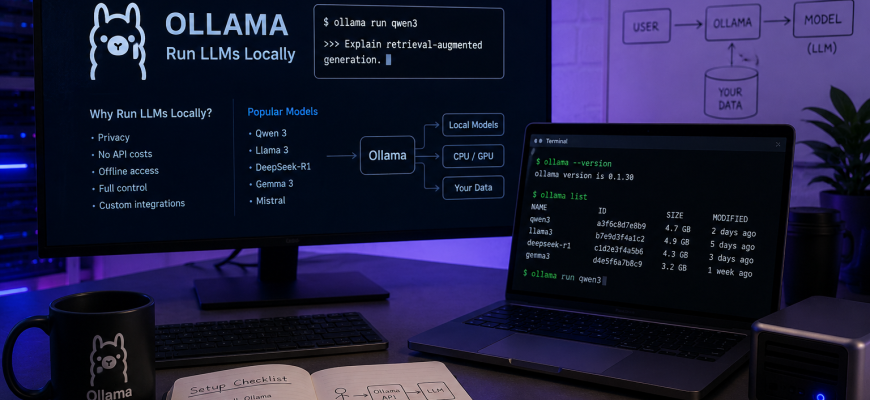
ollama --version
If a version number is displayed, the installation was successful.
Step 3: Run Your First Model
Download and launch a model:
ollama run qwen3
The first launch may take several minutes because the model must be downloaded.
After the download finishes, you’ll enter an interactive chat session.
Example:
>>> Explain retrieval-augmented generation.
Installing Ollama on Linux
Most Linux distributions support Ollama.
Install using:
curl -fsSL https://ollama.com/install.sh | sh
Verify installation:
ollama --version
Run a model:
ollama run qwen3
Check service status:
systemctl status ollama
Enable automatic startup:
systemctl enable ollama
Restart the service:
systemctl restart ollama
Installing Ollama on macOS
Ollama works particularly well on Apple Silicon devices.
Supported chips include:
- M1
- M2
- M3
- M4
After installing Ollama, run:
ollama run qwen3
Apple’s unified memory architecture often delivers impressive performance for local AI workloads.
Best Models to Run with Ollama
Qwen 3
Excellent balance of speed and quality.
Strengths:
- Strong reasoning
- Multilingual support
- Coding capabilities
- Efficient resource usage
Installation:
ollama run qwen3
DeepSeek
Popular for technical and coding tasks.
Strengths:
- Code generation
- Math reasoning
- Agent workflows
Installation:
ollama run deepseek-r1
Gemma
A lightweight model family from Google.
Best for:
- Laptops
- Mini PCs
- CPU-only systems
Installation:
ollama run gemma3
Llama
One of the most widely adopted open models.
Best for:
- General-purpose AI
- Enterprise deployments
- Research projects
Installation:
ollama run llama3
Managing Models
List installed models:
ollama list
View model information:
ollama show qwen3
Delete a model:
ollama rm llama3
Update models:
ollama pull qwen3
Using the Ollama API
One of Ollama’s biggest advantages is its built-in API server.
By default, Ollama exposes an API on:
http://localhost:11434
Generate text using curl:
curl http://localhost:11434/api/generate -d '{
  "model": "qwen3",
  "prompt": "Explain vector databases"
}'
This API can be connected to:
- n8n workflows
- Custom applications
- AI agents
- CRM systems
- Internal company tools
- RAG pipelines
Installing Open WebUI
Many users prefer a graphical interface instead of the terminal.
Open WebUI is one of the most popular frontends for Ollama.
Deploy with Docker:
docker run -d \
-p 3000:8080 \
--add-host=host.docker.internal:host-gateway \
-v open-webui:/app/backend/data \
ghcr.io/open-webui/open-webui:main
Open:
http://localhost:3000
You now have a ChatGPT-like interface running entirely on your own infrastructure.
Common Issues
Out of Memory Errors
Error:
out of memory
Possible solutions:
- Use a smaller model
- Increase RAM
- Use a quantized model
- Reduce concurrent requests
Slow Inference
Common causes:
- CPU-only execution
- Insufficient VRAM
- Large model size
Possible solutions:
- Use GPU acceleration
- Switch to a smaller model
- Upgrade storage to NVMe SSD
Model Download Problems
Try updating Ollama:
ollama update
Or re-download the model:
ollama pull qwen3
Ollama vs LM Studio
| Feature | Ollama | LM Studio |
|---|---|---|
| Command-line interface | Yes | Limited |
| REST API | Built-in | Available |
| Automation workflows | Excellent | Moderate |
| Docker deployment | Easy | Limited |
| Beginner friendliness | Good | Excellent |
| Server deployment | Excellent | Moderate |
For self-hosted AI infrastructure, automation, and production workflows, Ollama is generally the preferred option.
Frequently Asked Questions
Is Ollama free?
Yes. Ollama itself is free to use.
Can Ollama run without a GPU?
Yes. However, performance will be significantly slower for larger models.
What is the best model for beginners?
Qwen 3 8B is currently one of the best starting points due to its balance of quality, speed, and hardware requirements.
Can Ollama be used in production?
Yes. Many developers use Ollama as the inference layer for internal AI applications, chatbots, RAG systems, and workflow automation platforms.
Conclusion
Ollama has become one of the easiest ways to run local LLMs in 2026. Whether you’re experimenting with AI on a laptop, building a home AI server, or deploying enterprise-grade workflows, Ollama provides a simple and powerful foundation.
With support for modern open-source models, a built-in API, and straightforward deployment, it remains one of the best tools for anyone interested in self-hosted AI infrastructure.